|
Stretching a PowerPoint presentation across the desktop
- select Design > Page Setup (or File > Page Setup from the menu) and adjust the slide width so that the slide covers the whole desktop. For example with 2 monitors side by side, you would need to double the slide width, with 3 monitors triple it
- stretch the slideshow window across the desktop, for example with UltraMon (using a 'maximize to desktop' hotkey)
Multi-monitor modes
Windows supports a single multi-monitor mode, usually referred to as standard or extended desktop mode, also DualView or independent displays mode.
In this mode, all monitors connected to the installed video cards form a single desktop, you can move the mouse and applications to any monitor. Each monitor can use different settings (resolution, color depth and refresh rate).
Most multi-monitor video cards (video cards which can drive 2 or more monitors) support additional, video card-specific modes.
Very common is clone mode: in this mode, the same image is shown on 2 or more monitors. Clone mode is usually limited to the monitors connected to a single video card, for example you couldn't clone monitor 1 (on video card 1) on monitor 3 (on video card 2) if you have two dualhead cards installed.
Span mode (also called stretched mode): in this mode, all the monitors connected to a single video card form a single large monitor. Windows thinks that you are using a single monitor instead of 2 or more, and each monitor needs to use the same resolution and color depth settings, and usually also the same refresh rate. Most video cards only support span mode on Windows XP and earlier.
This mode is mainly useful for forcing applications which have no native multi-monitor support to use all available monitors. For example most games will only run on the primary monitor, and in span mode all monitors form a single large primary monitor.
When using span mode, Display Properties will usually show the primary monitor running at a widescreen resolution, for example 2048x768 (2 monitors at 1024x768 each), with the secondary monitor disabled.
To enable video card-specific multi-monitor modes, you usually need to disable the secondary monitor(s) connected to the video card, then open advanced display properties for the primary monitor, select the video card manufacturer's custom settings tab and select the multi-monitor mode you want to use.
When playing a video, it is also shown fullscreen on the other monitor
This happens if the video mirroring feature of your video card is enabled. You can disable this option on the tab for your video card under advanced display properties, Nvidia calls this feature Full Screen Video, for ATI video cards it is called theater mode, and Matrox calls it PureVideo/DVDMax.
Maximum number of monitors
The maximum number of monitors isn't known, but the often-cited limit of 10 monitors is only a limitation of the Display Properties applet, not the system as a whole. So installing more than 10 monitors should work fine, but you would need a custom application, for example UltraMon, to configure them. See this newsgroup thread for more information.
I have tested a 12-monitor Windows XP system with 3 Matrox G450 MMS quad cards, using UltraMon for configuration. Colorgraphic has built a 16-monitor system with Xentera GT cards, and expects to be able to run up to 64 monitors: see this thread and this thread for more information.
Secondary screen shifts when playing game
If your secondary monitor is to the right of the primary monitor, and you play a game which changes the resolution of the primary monitor, the windows on the secondary monitor will be shifted to the edge of the monitor. This is an issue with DirectX. Workarounds:
- make the primary monitor the right-most monitor before playing the game
- change the display resolution manually before playing the game
Distorted sound
When using some applications (for example a video player) on your secondary monitor(s), you might get distorted sound. This seems to be an issue with PCI bus bandwidth, see the following forum threads for more information: Really bad audio, Sounds when moving windows between monitors, Scratchy sound.
Playing fullscreen video/DVD on secondary monitors
The following video players can play fullscreen on any monitor, and they stay in fullscreen mode when you work with a different application:
Multi-monitor KVM
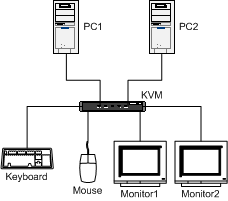
A KVM (Keyboard Video Mouse) switch is used to control multiple computers using a single keyboard, mouse and monitor. A multi-monitor KVM serves the same purpose, but allows you to use multiple monitors.
If you have multiple computers but only use one at a time, a KVM allows you to share keyboard, mouse and monitors between the different systems, thereby saving you space and money.
The following drawing shows a sample scenario using 2 PCs, each with support for 2 monitors.
Available multi-monitor KVMs:
Also see this thread in the forum for more on multi-monitor KVMs.
Dualhead cards and true multi-monitor support on Windows 2000
Due to a limitation in Windows 2000, dualhead cards that use a single chipset to drive both monitors require special workarounds in the driver to be properly recognized by the system. If these workarounds are not implemented, Windows 2000 sees a single large monitor instead of two.
This causes the following problems:
- using different resolutions for each monitor is not possible
- windows are maximized to the desktop instead of the monitor they are on, and dialog boxes appear centered on the desktop, split across monitors. Software included with the card may be used to work around these problems though
- taskbar is extended across both monitors instead of only a single one
- multi-monitor software will not work properly
All major video card/chipset manufacturers do now have Windows 2000 drivers with full multi-monitor support.
- Appian added support for their Hurricane cards, most likely also for other RADEON VE-based cards.
- ATI has added support for the RADEON 9xxx cards, but not for earlier cards. See this forum thread for more information.
- Matrox has supported this for a long time, when installing the drivers, make sure to enable support for independent displays.
- Nvidia added support in the 28.32 drivers, see this forum thread for more information.
Monitor calibration
Ideally, all monitors should have the same brightness, contrast and color temperature. There are 3 ways to calibrate a monitor:
Using monitor controls
All monitors have controls to adjust brightness and contrast, some also let you adjust colors. You can access the controls through buttons on the monitor or an on-screen menu.
Using monitor calibration features of the display driver
Most display drivers provided by the card or chipset manufacturer let you adjust brightness, contrast and color. To adjust these settings, open Display Properties, go to the monitor's advanced settings and look for an appropriately named tab.
Using special software
There are several tools available for monitor calibration, one that is readily available for download is PowerStrip. The advantage of a tool like this is that you can adjust all monitors from a single location, and you can create different monitor profiles, for example a brighter one for use at day, and a second for use at night.
For solid and repeatable results, a colorimeter (a tool to measure the display characteristics of a monitor) is recommended. The following packages include a colorimeter and calibration software: Spyder, ColorBlind Prove It!.
If you don't have a colorimeter, you can use a color chart to help with calibrating the monitors. See Star Systems' web page on color calibration for various charts and more information on the topic.
Adding multi-monitor support to a Windows 98 driver set
First, locate a file in the system folder, vgartd.vxd. This file is used in every driver set that does support secondary monitors. The file is available from the Win98 SE CD, in DRIVERS\DISPLAY\MATROX\G200.
Next, copy the inf file and all the driver files that come on the install disk or CD of the card you want to use as second monitor. Make a folder on the harddrive and call it something like "second monitor", without the quotes. Put the drivers and inf file in this folder.
Next use notebook to open the inf file: look for a section that shows the primary drivers used on most systems; with my Number Nine Imagine 128 it was i128.drv, i128.dll, i128.vxd. On the next line after those make a blank line and type in vgartd.vxd.
Next, locate the addreg section of the particular device you are using (some inf files have info for more than one adapter). In the i128 inf file this section is called Imagine128.AddReg. In this section is where it tells the computer how to setup the device. Look for something like HKR,DEFAULT,drv,,i128.drv make a blank line after that line and copy that line to the blank line. Then change the second line to read something like HKR,DEFAULT,drv2,,i128.drv. Locate the minivdd line and do the same thing making it read minivdd2. This tells the computer that this adapter will be the second monitor.
Next, locate the section that says something like PCI\VEN and you should see the name given to the driver set. With my card it's called DeviceDesc="Number Nine Imagine 128". Add inside the quotes the word "multi" to rename it like a new driver set. Mine is renamed Number Nine Imagine 128 Multi.
Now it's time to install the drivers.
Special Note********* this so far only works until you reboot, then you have to reinstall the drivers each time. BUT, it's better than not being able to use the adapter at all.
That said, install the driver as you would any other, using "have disk" button to locate the folder we made to hold these files. Click on the inf file and load. When it asks for the location of the vgartd.vxd file browse to the Windows\System folder and open it, then click ok and ok. This will finish loading and initialize the second monitor. Follow instructions displayed on second monitor.
WARNING************ If it ask to reboot tell it no, because this isn't permanent. It have to be re-updated each time you reboot.
If you have questions or need help in doing this task, e-mail me at shade@xit.net.
Can I read my e-mail on the second monitor while playing a game?
This sounds great in theory, but usually doesn't work well. Here's why:
- To use your e-mail or other program on the second monitor, you'll have to switch away from the game. Most games will minimize and pause when you do this.
- If your second monitor is to the right of the primary monitor, there's another problem: if the game changes the display resolution, the applications on the second monitor will be moved partly off the monitor. The only workaround is to run the game at the same resolution as the Windows desktop.
Secondary PCI video card doesn't work with Windows 2000 or later
Try the following:
- set the secondary card as primary in the BIOS. If you have an AGP and a PCI card, look for a BIOS setting that lets you select whether AGP or PCI should be initialized first (more information). If you have two PCI cards, you need to swap them
- go to Display Properties, and set the card of your choice as primary. The primary card should be your better card, as it is the one that will have accelerated 3D graphics and will be used by games
This workaround should work fine with older S3 and ATI cards, which need to be booted as primary because they need access to the VGA BIOS. If you have more than one card with this requirement, you'll have to replace all but the first one as only one card can be primary in BIOS.
Here's what Steve Deng from Microsoft told me on the issue: 'Win2k doesn't support this card as secondary adapter because this s3 device needs to access vga registers and call int10. These behaviors conflict with the primary video adapter. Although there might be ways to hack the problem, Win2k doesn't implement those approaches.'
If the secondary card still doesn't work, you will need to make it primary in Windows as well.
Mirroring (same display on multiple monitors)
Windows itself doesn't support mirroring, but multi-monitor video cards and laptop video chipsets usually support clone mode (only on the displays connected to the same video card). Other solutions: UltraMon has a flexible software mirroring feature. VGA/video splitter: this is a device which takes the video signal from one video card and sends it to 2 or more monitors. Here are some vendors: NTI, National Technology.
TV tuner cards
Most video cards with TV tuners should be used as primary card, otherwise you will lose the TV tuner functionality.
TV cards from Hauppauge can show video on any monitor when using the WDM drivers. Please note that these cards may not work with all video cards, check their site for compatibility information.
Does card x work as primary/secondary?
Take a look at the Compatibility Database to see if others are using your card successfully.
Changing the BIOS primary card
Most systems let you select either the video card installed in the main video card slot (PCI Express x16 or AGP) or a video card installed in a different slot as the primary video card. Look for a BIOS setting named 'Primary Video', 'Initialize First', 'Init Display First' or similar.
Desktop icons moving to primary monitor
If you have desktop icons on a secondary monitor, Windows will sometimes move them back to the primary monitor when you restart your system. The following multi-monitor utilities have a fix for this problem: Matrox PowerDesk, PowerStrip, UltraMon.
High color cursor displayed in 256 colors
This happens if you don't use the same color depth for all monitors.
Multi-monitor desktop wallpapers
Use the wallpaper feature of UltraMon to create desktop wallpapers with a different image on each monitor, or a single image stretched across all monitors.
Other options:
Tiled background image: if your monitors are arranged horizontally in a single row, and the left-most monitor is the primary, you can span a single image across the whole desktop simply by tiling it. Go to Control Panel > Personalization (Display on Windows XP and earlier), select an image that is as large as your whole desktop, then choose Tile as the picture position/style. On Windows 98/Me, Active Desktop needs to be enabled for this to work.
Active Desktop (Windows XP and earlier only): go to Control Panel > Display > Desktop, click on Customize Desktop, then select the Web tab and add the image(s) you want to use. You can stretch a single image across the whole desktop, or use a different image on each monitor.
See the links page for sites with multi-monitor wallpapers.
Taskbar on second monitor?
UltraMon can add a taskbar to each monitor, see Smart Taskbar for more information.
If you want to move the Windows taskbar to a different monitor, make sure the taskbar is unlocked, then grab a free area on the taskbar with the mouse and drag it to the desired monitor. Additionally, you can also move individual toolbars (such as the Quick Launch or Address toolbar) to any monitor you like. To move a toolbar off the taskbar, grab it by its handle and drop it on a free area of the desktop. Toolbars can dock on any side of a monitor or float on the desktop.
You can also move the taskbar using the keyboard, very useful if it is on an inaccessible monitor (thanks go to Jeff Cornish):
- press either the Windows key or Ctrl-Esc to pop the Start Menu up
- press Esc to close it. The taskbar now has the focus
- press Alt-Spacebar to pop the context menu for the taskbar
- press M to trigger the 'move' function
- use the arrow keys to move the cursor to another edge of the monitor(s) or press one of the arrow keys and then move the mouse. The Taskbar is now 'attached' to the end of the cursor, so moving the cursor near one of the monitor edges will snap the Taskbar there
You can also select 'Size' (S) instead of 'Move' to easily resize the Taskbar.
Games and multiple monitors
Most games only run on the primary monitor, but you may be able to stretch the game across multiple monitors in windowed mode (if available). If you're using Windows XP or earlier, you could also use the video card's span mode if available, in that mode the game will see a single wide monitor instead of 2 or 3 monitors. For this to work the game needs to support widescreen resolutions, for example 2048 x 768 if you have two 1024 x 768 monitors. Some games do support multiple monitors, for example Microsoft Flight Simulator lets you put views on different monitors.
Multi-monitor and onboard video cards
This generally works fine, but on some systems the onboard video card gets disabled as soon as another video card gets installed.
Resource conflicts
Ron sent this tip for resolving resource conflicts: 'I had trouble installing my ISA Adaptec SCSI card which only works with IRQ 11. The IRQ Holder for PCI Steering only works with PCI. To install the ISA card, I had to first remove my second video card, install the ISA card, then reinstall my video card so it can grab another IRQ.'
Manually assigning IRQs: on Windows 2000/XP and later, you'll need to have set the computer type to a non-ACPI type, for example Standard PC, otherwise you won't be able to assign IRQs manually. For Windows 98/Me, see Microsoft Support.
Interference when using multiple CRT monitors
When using multiple CRT monitors, you may get interference which will show as a line or wave moving up or down the display.
To fix this, try using a different refresh rate for each monitor. If that doesn't help, you'll have to move the monitors further apart, or put a shielding material between them. The ideal material is a thin nickle alloy sheet called mu-metal, available from LessEMF.com.
User-provided explanations of this problem:
>>> The interference between monitors occurs if the monitors aren't well shielded. Basically, monitors generate electrons which are focused and aimed at the screen to generate pixels; anybody this far knows this. The way you focus electrons is with electromagnets; if the monitors are poorly shielded and located too close to one another, the magnetic focusing of one can influence the focusing of the other (and vice versa). I didn't run across this on my multi-monitor system, but had a devil of a time when I was in college and working part time in the school's IT department. We'd line up a dozen or so machines right next to each other so we could laplink basic installations of everything from one to the other and had to deal with this kind of thing. My Samsung SyncMaster700's are literally touching each other with no trouble.
Moving the monitors apart helps solve the problem, as does changing their refresh rates (so that hopefully they aren't both focusing electrons at the same time). Putting something between them to block the magnetic field (a sheet of metal? a lead piece?) might help too. <<<
>>> There are magnets on the neck of any CRT (tv, monitor etc) and these are used for focusing during the set up. Some are glued to the neck, some are on bits of metal than can be bent for adjustment. However these would not cause interference between monitors as they are permanent magnets. The problem arises from the magnetic deflection coils that scan the beam from side to side and up and down the face of the tube. The large high frequency currents in these coils radiate a strong magnetic field that can affect nearby tubes as well as its own tube.
Magnetic shielding is the most difficult as there is no magnetic insulator (as there is for electric fields). The closest thing is a metal called mu-metal. This is used to shield photomultiplier tubes used in physics experiments. <<<
More information: Multimon forum, Microsoft Support.
|
